© 2026 Genie Projects World. All Rights Reserved.

Learn how to install XAMPP in Windows 10 with this quick and easy step-by-step guide in Tamil. Perfect for beginners looking to set up a local server for PHP projects.
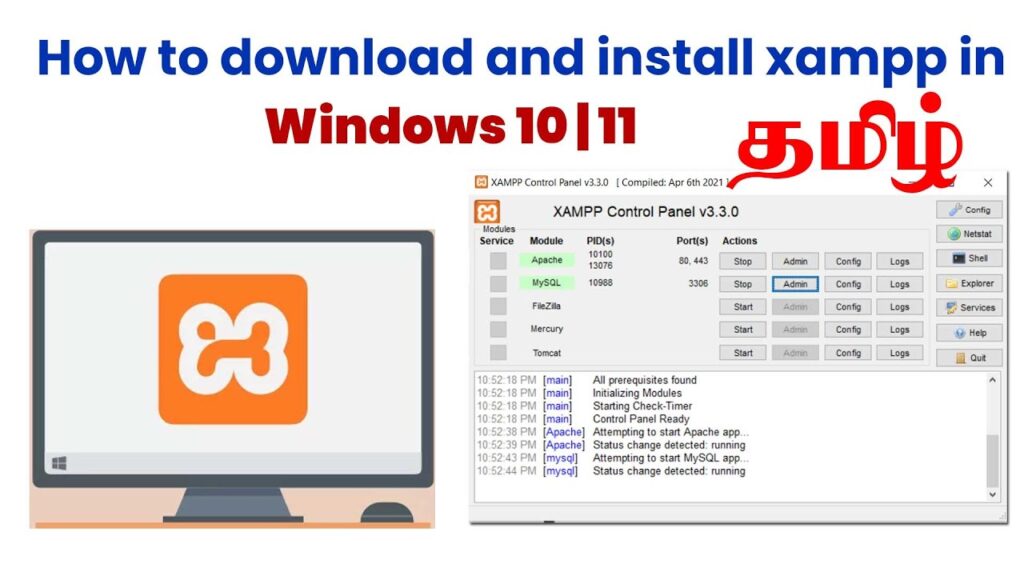
If you want to develop and test websites on your local computer, XAMPP is one of the easiest solutions available. XAMPP is a free and open-source software package that includes Apache, MySQL, PHP, and Perl, allowing developers to create a complete local web server environment within minutes. Whether you are learning PHP, building dynamic websites, or experimenting with databases, XAMPP provides a simple way to run web applications directly on your Windows 10 computer. In this guide, we will walk through the XAMPP installation and setup process step by step, making it easy for beginners to get started.
Free and Open Source – XAMPP can be downloaded and used without any licensing costs.
Easy Installation Process – The setup wizard makes installation simple, even for beginners.
Complete Development Environment – Includes Apache, MySQL, PHP, and Perl in a single package.
Ideal for Learning Web Development – Perfect for students and beginners who want to practice PHP and database development locally.
Cross-Platform Support – Available for Windows, Linux, and macOS.
Local Testing Environment – Test websites and applications safely before deploying them to a live server.
Built-In Control Panel – Easily start, stop, and manage server services with a user-friendly interface.
Large Community Support – Extensive documentation, tutorials, and community resources are available online.
Hey there! So, if you’re looking to install XAMPP on your Windows 10 machine, you’re in the right place. Let’s break it down step by step, shall we? 😉
First things first, you’ll want to grab the XAMPP installer from the official website. Just head over to Apache Friends and download the version that suits your system.
XAMPP Official Download Link: apachefriends.org
Once that’s done, find the installer in your downloads folder and double-click it. You might see a warning pop up asking if you’re sure you want to run it go ahead and click “Yes.”
After that, a setup wizard will greet you. Just follow the prompts, and when you get to the component selection, you can choose what you want to install. If you’re not sure, you can go with the default options; they’re pretty standard and work for most users.
Then, select the installation directory. The default is usually fine, but if you’re like me and enjoy customizing things, feel free to change it!
Next up, you’ll see a window asking if you want to start the XAMPP Control Panel. It’s pretty handy for managing your servers, so I’d recommend keeping that box checked.
Once you’ve clicked “Next”, the installation will begin. Just sit back and relax for a few minutes while it does its thing!
When it’s finished, you’ll see a button to start the XAMPP Control Panel. Go ahead and open it up. From there, you can start the Apache and MySQL servers easily. Just click on the “Start” button next to each one.
And voilà! You’re all set up. If you ever need to check if everything’s running smoothly, just open a web browser and type in “localhost.” You should see the XAMPP welcome page.
If you run into any issues, don’t stress there are plenty of forums and guides online to help you out. Happy coding!😊
Setting up XAMPP on Windows 10 is a quick and effective way to create a local web development environment. Once installed, you can run Apache and MySQL services, develop dynamic websites, test PHP applications, and work with databases directly from your computer. By following the steps outlined in this guide, you will have everything needed to start your web development journey. As you gain experience, XAMPP will continue to be a valuable tool for building, testing, and refining your web projects before deploying them online.
Get step-by-step guidance on how to set up and run the XAMPP web server locally, with our easy-to-follow YouTube video tutorial.


Genie Projects World helps students explore ready-to-run academic projects with full source code and tutorials.
Proudly made in 🇮🇳 with ❤️ for Students.
Educational use only – Licensing info available in Terms
Share Your Feedback